CodVerter AI Chat Guide
Use AI chat inside your front-end editor.
Learn how to ask better prompts, choose what code the AI should read, apply safe changes, manage project files, save your work, publish projects, and keep building with prepaid AI credit.
Guide contents
- What is CodVerter AI Chat?
- Getting started
- Code Context
- Prompt examples
- Applying AI changes
- Project Files
- Images and assets
- Save and share
- Publish and host a website
- Layout and preview
- Editing tools
- Search and replace
- HTML Elements Toolbox
- Output Calibrator
- Models, usage, and wallet
- AI Chat settings
- FAQ
What is CodVerter AI Chat?
CodVerter AI Chat is a coding assistant built directly into the AI Web Editor. You can ask it to build new HTML, CSS and JavaScript, fix bugs, improve design, explain code, answer programming questions, and continue work already inside your editor.
The important difference is context. Instead of copying code into a separate chat window, CodVerter can work with your editor code and your project workflow.
Getting started with AI Chat
- Open the AI Web Editor.
- Click the AI Chat icon in the left side rail.
- Write what you want to build, fix, explain, or improve.
- Choose the right Code Context before sending.
- Review the answer and apply changes when you are ready.
Choosing what code the AI should read
Code Context controls which code is sent together with your prompt. This is one of the most important settings in CodVerter AI Chat.
Uses the HTML, CSS and JavaScript from the most recent AI answer in the chat. This is useful when you want to continue a generated answer.
Uses the code that is currently open in the HTML, CSS and JavaScript editors. Use this when you manually edited the code or want the AI to review the current project.
Prompt examples that work well
Build something new
Create a responsive SaaS landing page with a hero section, pricing cards, testimonials and FAQ.
Improve the current editor code
Improve the design in my editor. Keep the layout responsive and make the call to action stronger.
Fix bugs
Check the current HTML, CSS and JS for bugs. Explain what is wrong and suggest safe fixes.
Ask a general programming question
Explain event delegation in JavaScript with a simple example.
Applying AI changes safely
When CodVerter returns code or safe targeted fixes, you can review the answer before applying it. For editor updates, the AI currently works mainly with the core editor files: index.html, styles.css, and scripts.js.
- Use Apply changes to editor and files when you want to update the project from the AI answer.
- Use Undo last editor replace if a replacement did not produce the result you wanted.
- For bug checks, CodVerter may suggest small, focused fixes rather than rewriting the whole project.
- Large redesigns and structural changes are usually returned as code to review, not as tiny automatic patches.
Project Files and external files
Project Files help you organize real front-end work instead of keeping everything in one temporary snippet. The main editor files are index.html, styles.css, and scripts.js, but CodVerter projects can also include extra pages, scripts, styles, images, and data files.
This is useful when you want to build a more realistic prototype, a multi-page front-end, or a project that uses static data from files such as JSON, XML, CSV, or TXT.
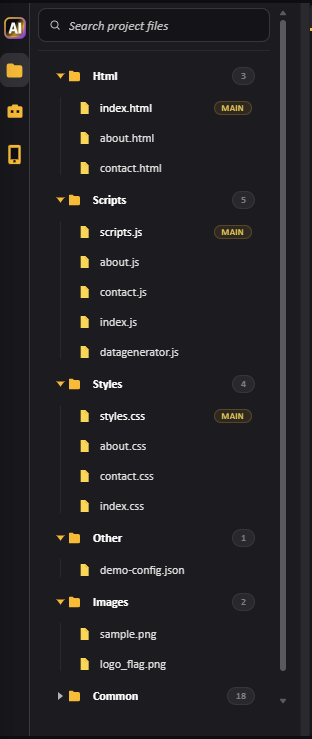
Available file areas
- Html - extra HTML pages such as about.html or contact.html.
- Scripts - JavaScript or TypeScript files.
- Styles - CSS files for shared or page-specific styling.
- Other - data and text files such as JSON, XML, CSV, TXT, WAV, or MP3.
- Images - uploaded image assets used by the project.
- Common - helper files provided by CodVerter.
Editing external files
Double-click a supported text-based file in Project Files to open it in CodVerter’s external file editor. You can edit the file with syntax highlighting, save it back to your project, and continue working without leaving the workspace.
Supported editable file types include: HTML, CSS, JS, TS, JSON, XML, CSV, and TXT.
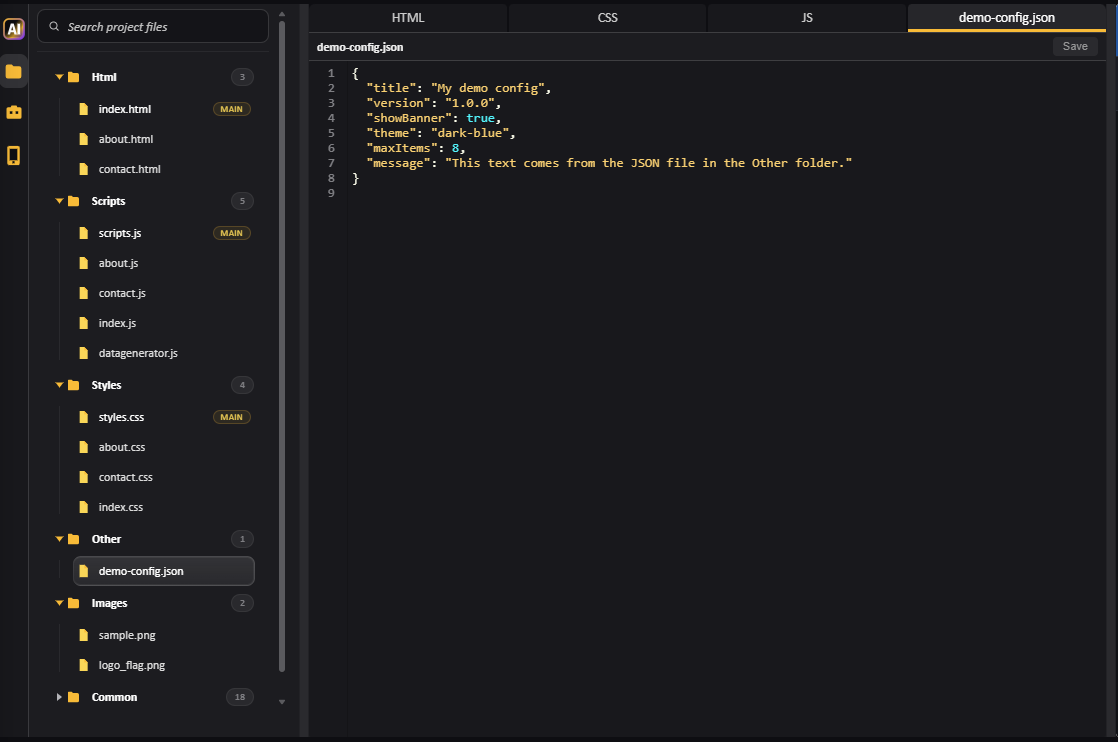
Creating and uploading files
You can create new files directly from the Project Files panel, or upload files into the relevant folder. CodVerter keeps each folder limited to the file types that make sense for that area.
- Html accepts .html and .htm files.
- Styles accepts .css files.
- Scripts accepts .js and .ts files.
- Other accepts .txt, .csv, .xml, .json, .wav, and .mp3 files.
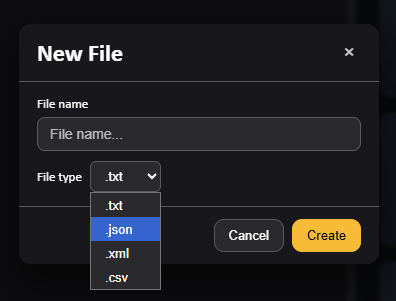
Using data files instead of a database
CodVerter does not include a live database yet, but you can use JSON, XML, TXT, or CSV files as project data files. This works well for prototypes, mock data, configuration, product lists, menus, and small static datasets.
Multi-page projects
You can add extra HTML pages under the Html folder and preview them inside CodVerter. For best compatibility with CodVerter preview and downloaded projects, use normal anchor links.
From index.html to an extra page:
<a href="Html/about.html">About</a>
From a page inside the Html folder back to the main page:
<a href="../index.html">Back</a>
Between pages inside the Html folder:
<a href="contact.html">Contact</a>
Keep shared layout and styling in styles.css and shared logic in scripts.js. From pages inside the Html folder, reference shared root files like this:
                    <link href="../styles.css" rel="stylesheet">
                    <script src="../scripts.js"></script>
Extra files in the Styles and Scripts folders can be referenced with paths such as ../styles/about.css and ../scripts/about.js.
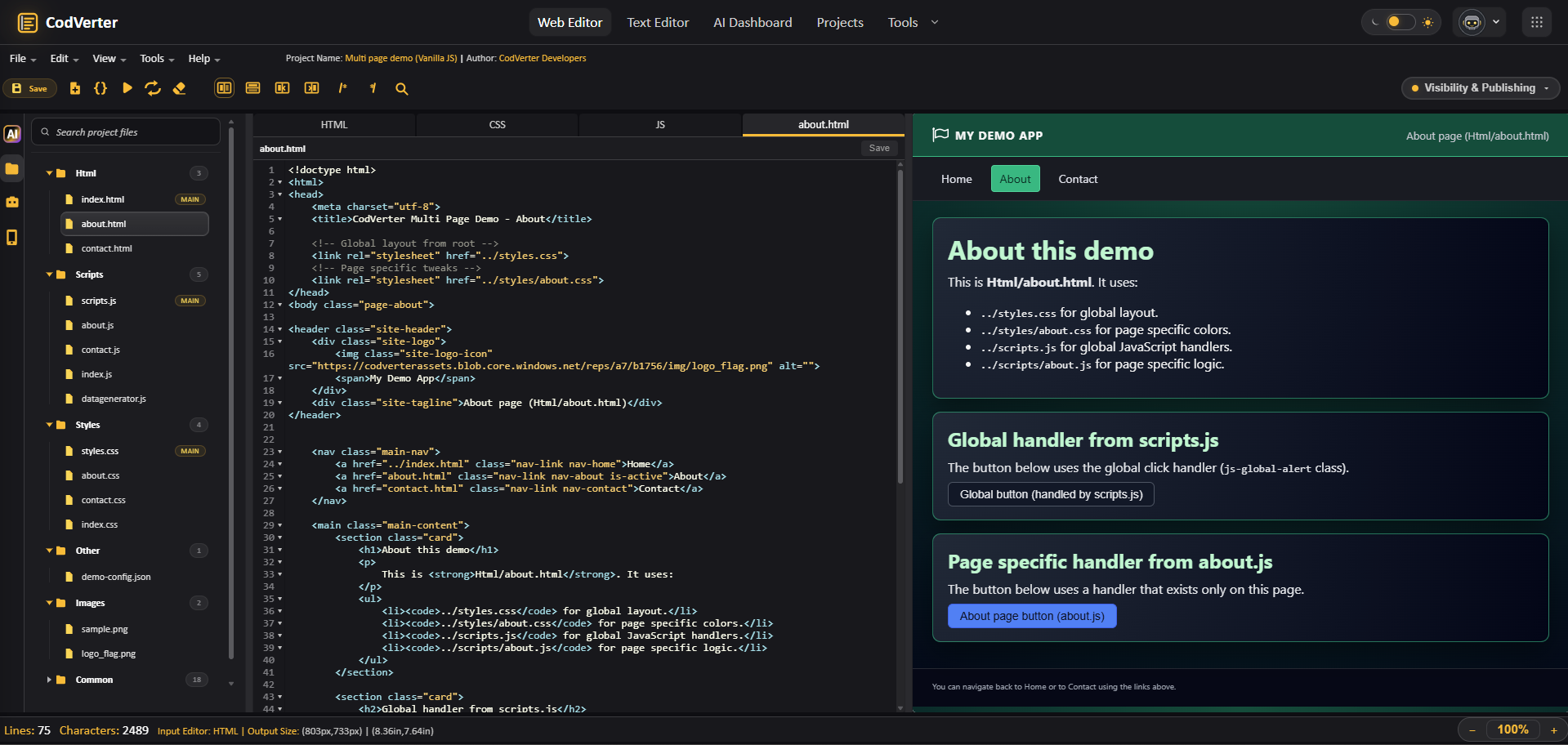
AI and project files
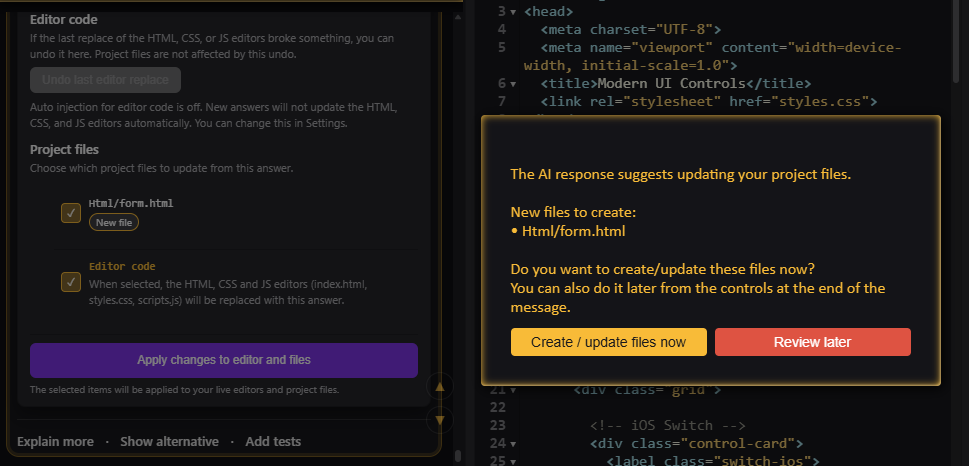
When supported by the selected model and project mode, AI answers may suggest creating or updating project files, not only replacing the three main editor files.
CodVerter shows a confirmation before creating or overwriting project files, so you can review the change first.
Uploading and using images
You can upload images into the project and use them inside your HTML and CSS. You can also drag or paste an image into the AI Chat when you want the AI to analyze it or generate related code.
- Open Project Files and use the Images folder.
- Drag and drop image files into the file tree when supported.
- Use image properties to copy the asset URL or inspect image details.
- Drag an image file from Project Files into the HTML editor to insert a ready-to-use tag.
Publish your project
Turn your project into a hosted website
After building and testing your front-end project, publish it directly from CodVerter. Your hosted website receives a public CodVerter website address and can be updated and managed from your account.
Website Hosting
Publish a saved HTML, CSS and JavaScript project as a public website. CodVerter packages the project, performs the applicable publishing checks and creates a hosted version that is separate from your unpublished editor changes.
- Receive a public website address.
- Publish multi-file front-end projects and assets.
- Publish new versions after updating the project.
- Manage hosted websites from your CodVerter account.
- View the website’s current hosting status and dates.
Other ways to share or publish a project
Makes a project discoverable in the public gallery. Public visibility does not give other users permission to edit the project.
Publishes a reviewed production version of the project to the CodVerter WebApps hub.
Changing layout and preview
The editor includes HTML, CSS and JavaScript tabs with a live preview panel. You can change the workspace layout depending on what you are doing.
- Horizontal View - default split view.
- Vertical View - editor and output stacked vertically.
- Editor Only - focus on code.
- Output Only - focus on preview.
- Reset Window Layout - restore the layout.
- Run in a New Tab - open the result separately.
- Refresh - refresh the live preview.
Editing and formatting code
CodVerter includes editor tools for common coding tasks.
- Undo and Redo.
- Compress Code.
- Beautify Code.
- Insert Lorem Ipsum text.
- Copy to Clipboard.
- Clear selected editors.
- Comment or uncomment selected code.
- Adjust editor font size from the bottom bar.
Searching and replacing code
Use Search Editor or Ctrl+F to find and replace text in the active editor.
- Switch between Find and Replace.
- Use case-sensitive search.
- Match whole words only.
- Move between previous and next matches.
- Use Replace or Replace all.
- Reuse search history when available.
Using the HTML Elements Toolbox
The toolbox helps you insert common HTML elements faster. You can browse by category, search, double-click an item, or drag it into the editor.
- Text content.
- Inline text semantics.
- Table content.
- Forms.
- Content sectioning.
- Image and multimedia.
- Document metadata.
- Scripting.
- Embedded content.
Testing responsive layouts with the Output Calibrator
The Output Calibrator helps you test how the preview behaves at different sizes and common device dimensions.
- Set output width and height in pixels.
- Set output size in inches.
- Choose common devices.
- Filter devices or sort them by manufacturer or alphabetically.
- Use advanced settings such as pixels per inch and device ratio.
Models, usage, and prepaid wallet
CodVerter can use different AI models depending on availability, limits and your account. The chat shows usage indicators so you can understand your current AI budget and prepaid wallet status.
Prepaid wallet
Prepaid credit lets you keep using AI without committing to a monthly subscription. It is useful when you want flexible AI usage for coding sessions, experiments, or occasional project work.
Usage indicators
- Main AI budget indicator.
- Prepaid wallet indicator when wallet credit is available.
- Free call limit indicator for free usage.
- Detailed usage view when you click the usage indicators.
AI Chat settings
The chat settings help you control how the AI works with your editor.
- Language - choose the preferred AI response language when available.
- Code Context - choose what code is sent with your prompt.
- Auto-injection - control whether AI code can be inserted automatically when applicable.
- Prompt font size - adjust the input size.
- Enter to send - choose how Enter behaves.
- Single-file solution - request a simpler response focused on index.html, styles.css and scripts.js.
- Search chat - search inside the conversation.
- Clear chat - clear the current chat when needed.
Common questions
Can I ask general programming questions?
Yes. You can ask general questions about HTML, CSS, JavaScript and programming concepts. For project-specific help, choose the right Code Context before sending.
Can the AI read my current editor code?
Yes. Use Editors (current) as the Code Context when you want the AI to work with the HTML, CSS and JavaScript currently open in the editor.
Does someone need an account to view a shared project link?
No. A person who receives your view link can open the project without registering or logging in. The link is view-only, so they can view the project but cannot edit or save changes to your project.
Can the AI create or update project files?
Yes, when the selected model and project mode support it, AI answers may suggest creating or updating project files. CodVerter shows a confirmation before creating or overwriting files. The three main editor files are still index.html, styles.css, and scripts.js.
What is the difference between Website Hosting, Public Work and Web App?
Website Hosting is the primary option for publishing a saved front-end project as a public website with its own CodVerter website address. Public Work controls whether a project appears in the public gallery. Web App publishes a reviewed application version to the CodVerter WebApps hub.
Do I need a subscription?
You can begin with the free plan, and prepaid wallet credit is available for flexible AI usage without a monthly commitment. Free and prepaid website hosting is limited to the 60-day hosting trial. Keeping a hosted website online beyond that period requires an eligible monthly plan.